
How to Get & Set Up iVCam App for iPhone & iPad?
Are you looking for an easy and effective way to enhance your video quality for meetings, live streams, or content creation? iVCam is an exceptional app that allows you to transform your iPhone or iPad into a high-quality webcam. Whether you're working remotely, attending virtual classes, or engaging in live streaming, iVCam offers an affordable and straightforward solution. This guide will provide you with a step-by-step process for downloading, installing, and setting up the iVCam app on your iPhone and iPad.
What Is iVCam?
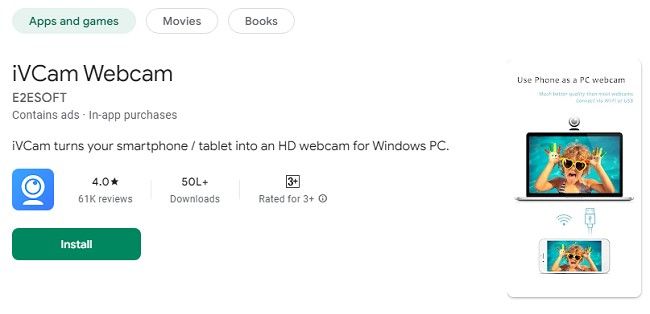
iVCam is an innovative application that enables users to use their smartphone or tablet as a webcam for their computers. With its ability to deliver high-definition video and a user-friendly interface, it is ideal for video conferencing, gaming streams, and other video-related tasks. Compatible with both Windows PCs and Apple devices, iVCam bridges the gap between your mobile device and your desktop setup seamlessly.
Key Features of iVCam
Before we dive into the steps for downloading and setting up the iVCam app, here are some of its standout features:
HD Video Quality: Offers resolutions up to 4K, ensuring crystal-clear visuals.
Low Latency: Provides a smooth and lag-free video experience.
Wireless & USB Connectivity: Supports both Wi-Fi and USB connections.
Multi-Device Support: Allows you to use multiple devices as webcams simultaneously.
Customizable Settings: Includes adjustable video frame rates, resolutions, and bitrates.
Audio Support: Captures audio from your iPhone or iPad.
Now, let’s look at how you can get iVCam up and running on your iPhone or iPad.
Steps to Download iVCam App for iPhone & iPad
Step 1: Check System Requirements
Before downloading the iVCam app, make sure your devices meet the following requirements:
iPhone/iPad: iOS version 10.0 or later.
PC: Windows 7 or later.
Wi-Fi Network: Ensure both your PC and iPhone/iPad are connected to the same Wi-Fi network if using wireless mode.
Step 2: Download the iVCam App on Your iPhone or iPad
Follow these steps to download the iVCam app:
Open the App Store on your iPhone or iPad.
Tap on the search bar and type “iVCam Webcam.”
Locate the official app developed by E2ESOFT.
Tap Get and confirm the download using your Apple ID or Face ID.
Wait for the installation to complete.
Step 3: Download and Install iVCam on Your PC
To pair your iPhone or iPad with your PC, you’ll need the iVCam client software installed on your computer. Here’s how to get it:
Visit the official iVCam website at www.e2esoft.com/ivcam.
Download the Windows version of the iVCam software.
Run the installer and follow the on-screen instructions to complete the installation.
Step 4: Connect Your iPhone or iPad to Your PC
Once the app is installed on both your iPhone/iPad and PC, follow these steps to connect the devices:
Option 1: Wireless Connection
Ensure your iPhone/iPad and PC are connected to the same Wi-Fi network.
Launch the iVCam app on your iPhone or iPad.
Open the iVCam software on your PC.
The app will automatically detect your device and establish a connection.
Option 2: USB Connection
Connect your iPhone or iPad to your PC using a USB cable.
Open the iVCam app on your mobile device.
Launch the iVCam client software on your PC.
The connection should be established automatically.
Step 5: Adjust Video Settings
After connecting your iPhone or iPad to your PC, you can customize the video settings to suit your needs. Here’s how:
Open the iVCam app on your iPhone or iPad.
Navigate to the settings menu.
Adjust options such as resolution, frame rate, and video quality.
Save your changes and preview the video to ensure it meets your expectations.
Step 6: Use iVCam with Your Preferred Software
iVCam is compatible with popular video conferencing and streaming platforms, including Zoom, Microsoft Teams, OBS Studio, Skype, and more. To use iVCam as your webcam:
Open the application you want to use (e.g., Zoom or OBS Studio).
Navigate to the video settings.
Select “iVCam” as your default camera.
Start your video call or stream.
Benefits of Using iVCam on Your iPhone or iPad
Cost-Effective Solution: iVCam eliminates the need to purchase an expensive external webcam.
High Portability: With your iPhone or iPad doubling as a webcam, you can enjoy flexibility and mobility.
Easy Setup: The straightforward installation process makes it accessible for users of all experience levels.
Advanced Features: From HD resolution to customizable settings, iVCam provides features that rival traditional webcams.
Multitasking: Use your iPhone or iPad as a webcam while simultaneously accessing other apps.
Troubleshooting Common Issues
While iVCam is designed for seamless functionality, you may encounter occasional issues. Here are solutions to common problems:
Connection Failure:
Ensure both devices are on the same Wi-Fi network.
Restart the iVCam app on both devices.
Try using a USB connection if Wi-Fi fails.
Low Video Quality:
Adjust the resolution settings in the app.
Ensure your Wi-Fi connection is stable and fast.
Audio Not Working:
Check if the “Use Phone as Microphone” option is enabled in the iVCam settings.
Ensure your PC’s sound settings are configured correctly.
App Crashing:
Update the iVCam app and software to the latest version.
Restart your devices to clear any temporary glitches.
Tips for Optimizing Your iVCam Experience
Stable Network: For a wireless connection, ensure your Wi-Fi network has a strong and stable signal.
Good Lighting: Improve video quality by using proper lighting during your calls or streams.
Mount Your Device: Use a tripod or a stable stand to keep your iPhone or iPad steady.
Close Background Apps: Free up resources by closing unnecessary apps on your iPhone or iPad.
Regular Updates: Keep the iVCam app and PC software updated to access the latest features and improvements.
Why Choose iVCam for iPhone and iPad?
Unlike traditional webcams, iVCam offers a versatile and feature-rich solution tailored for modern needs. The app’s ability to leverage the superior cameras of iPhones and iPads makes it an unbeatable choice for anyone looking to enhance their video quality. Whether you're a professional, a student, or a content creator, iVCam is designed to cater to your unique requirements.
Conclusion
Getting the iVCam app on your iPhone or iPad is a simple yet powerful way to upgrade your webcam experience. By following this guide, you can effortlessly set up and use iVCam to meet all your video needs. With its advanced features, user-friendly interface, and compatibility with major platforms, iVCam is the ultimate webcam solution for iPhone and iPad users. Download the app today and experience a new level of video communication and creativity!
Trending Now
Updates